
Your Account Rules allow you to customize REACH based on your organization’s preferences. We recommend reviewing all tabs within this section to ensure your settings are configured to your needs.
To review and manage your Account Rules:
- Go to Settings > Account Rules
- Review each tab and update your preferences as needed.
- Click Save Changes after each update.
General tab
- Admin Console Date Format
Set the format for how dates are displayed in REACH. This does not affect date entry fields that use a calendar picker. - Disable All Supporter Emails
Temporarily prevents all supporter emails from being sent. We recommend enabling this while setting up your REACH account and unchecking it once setup is complete to resume communications. - Enable Supporter Daily Digest Email
When enabled, supporters will receive a daily email summarizing any new content, updates, or edits made to records (such as sponsorships, projects, places, or campaigns) they support. - Enable GDPR Settings
Enables compliance with the General Data Protection Regulation (GDPR)—an EU regulation governing consumer privacy.
When checked, REACH will display opt-in fields on supporter registration and donation forms to collect consent for email and phone communications. Note: If GDPR is enabled, supporters who have not opted in to receive email communications will not receive messages sent through REACH.
Use the text box editor to add custom information or help text to your donation or custom forms.
Sponsorships tab
The Sponsorships tab allows you to customize how sponsorships are managed and displayed in REACH.
- Notify Admin of Past Due Sponsorships
Select an admin from the dropdown menu to receive notifications when sponsorships become past due. - Automatically Add New Sponsors to a Group
Choose a Group from the dropdown menu to automatically add new sponsors to. Groups can be created and managed under Supporters > Groups. - Order Sponsorships By
Determine how sponsorships are displayed publicly—by Position, Alphabetically, or Randomly.- If ordering by Position, you can assign positions within each sponsorship record. A higher number indicates a higher placement in the public list (e.g., a position of 1000 appears before 100 or 0).
- Bypass the Cart Page on New Sponsorships
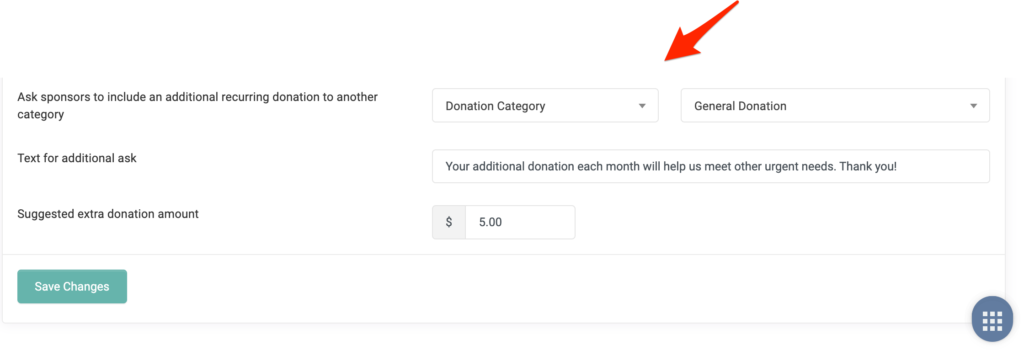
When enabled, supporters sponsoring multiple individuals or items will proceed directly to the donation page without viewing a list of their selected sponsorships first. - Ask Sponsors to Include an Additional Recurring Donation
This option allows you to prompt sponsors to add an extra recurring donation to their sponsorship.
You can select a Project, Place, or Donation Category, customize the display text, and set a suggested amount. Note: To omit a suggested amount, set the value to $0. - Example:
Encourage sponsors to add $5 as a General Donation in addition to their recurring sponsorship contribution.
Campaigns tab
The Campaigns tab allows you to customize how campaigns and supporter-led campaigns are managed and displayed in REACH.
- Review Supporter Campaigns
Requires admin approval before supporter campaigns are published publicly. - Send Supporter Campaign Donation Emails
When enabled, supporters who have created campaigns will receive an email notification each time their campaign receives a donation.
Recurring Donation Settings
The Recurring Donation Settings tab allows you to manage how REACH handles successful, failed, and retried recurring donations.
- Disable Email Sent After Recurring Donation is Processed Successfully
When checked, supporters will not receive an email after each successful recurring donation.
When left unchecked, supporters will receive a confirmation email after every successful donation.
This setting applies to all supporters. - Notify Donor of Failed Recurring Donation After X Failures
Defines how many times REACH will attempt to process a failed donation before notifying the supporter.
After the set number of failures, the supporter will receive an email notification, and your organization will be blind copied.
REACH will not attempt additional processing until the supporter or an admin updates the payment information. - Assign Admin Task to Follow Up on a Failed Recurring Donation After X Failures
Determines when an admin will be notified of a failed recurring donation.
Note: The number set here should be equal to or less than the donor notification number. For example, if donors are notified after 2 failures, the admin notification should be set to 2 or fewer—setting it to 3 would prevent the admin from being notified. - Automatically Cancel the Failed Recurring Donation After X Failures
Sets when a recurring donation will be automatically canceled after repeated failures.
Note: Canceling a recurring donation will also cancel any associated sponsorships.
For more information, see the Resolving Donation Errors article. - Try Supporter’s Primary Payment Method on Recurring Donation Payment Method Failure
When enabled, if a recurring donation fails, REACH will automatically attempt to process the donation using the supporter’s primary payment method on file. Notes:- If a supporter updates their payment method while a donation is failed, REACH will automatically retry the donation.
- Each supporter record must have a payment method marked as Primary.
For details, refer to the Updating Payment Information article.
Security Settings
The Security tab allows you to enhance account protection and prevent fraud within REACH.
- hCaptcha
Provides an additional layer of security to protect against fraudulent activity. You can enable hCaptcha for:- Donation Forms – requires supporters to complete hCaptcha when making a donation.
- Supporter Login, Registration, and Custom Forms – adds hCaptcha verification for supporter access and form submissions.
- Two-Factor Authentication (2FA)
Adds an extra layer of security for REACH admin accounts, beyond the username and password.- Recommended: 2FA is strongly recommended for all REACH admin accounts.
- Optional Requirement: You can require all admins in your organization to use 2FA by checking the corresponding box.
- Additional Option: Skip the hCaptcha check on login for admins who have 2FA enabled.
Always click Save Changes after updating any security settings.